

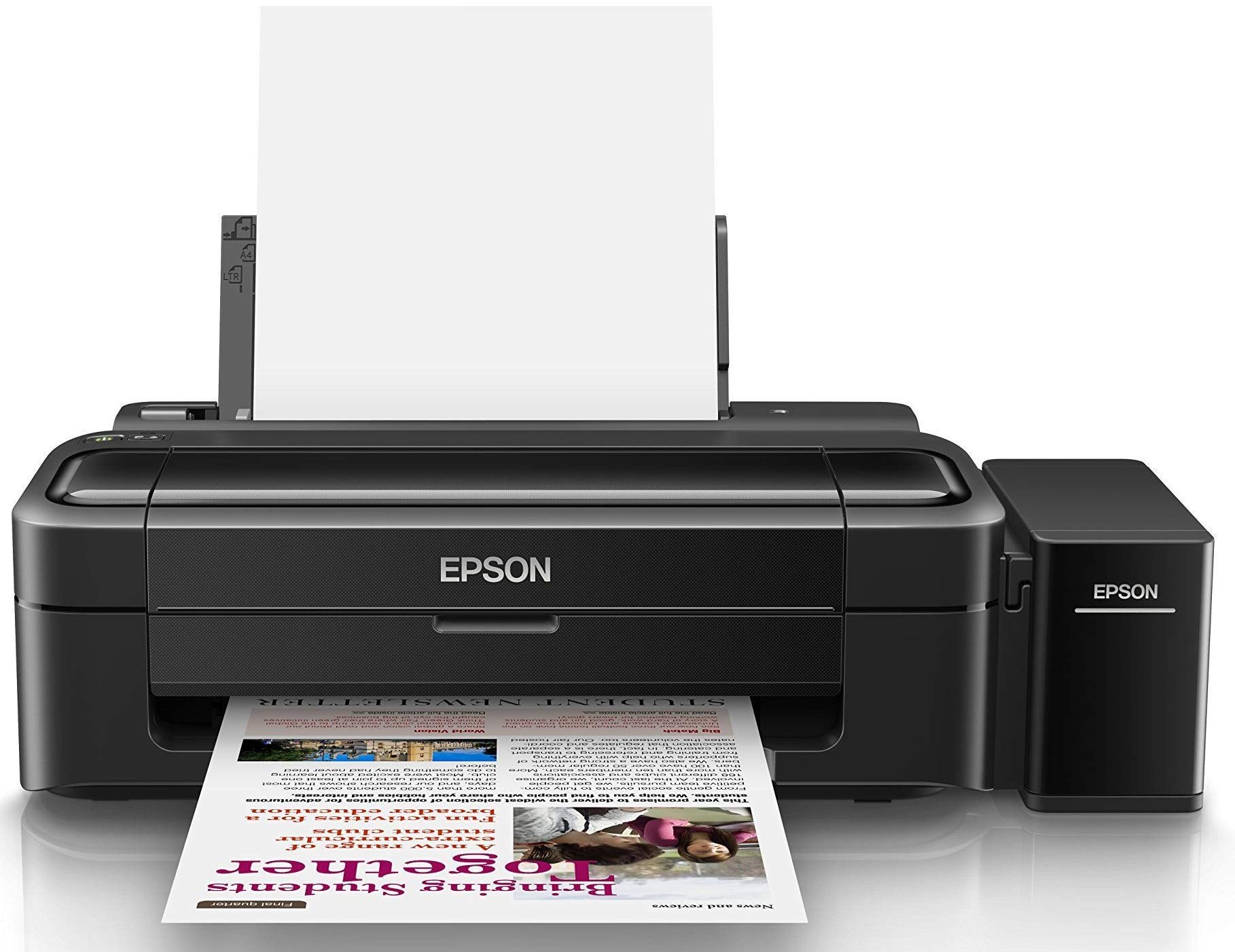
Here’s a clear, step-by-step guide on how to convert an Epson L130 printer for sublimation printing, with images to help you visualize each stage.
What You’re Doing
You’re basically turning a regular Epson L130 inkjet into a sublimation printer by replacing its regular inks with sublimation inks and using special paper. Once converted, you can transfer prints onto fabrics, mugs, metal, etc., using heat.
What You Need
Hardware / Supplies
- Epson L130 printer (clean / working)
- Sublimation ink set for Epson
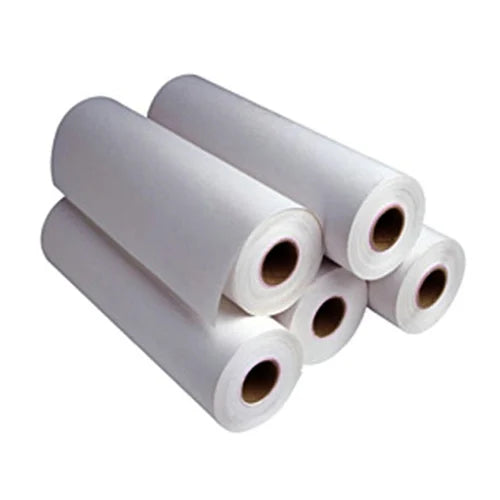
- Sublimation paper
- A computer with USB connection
- Heat press (for transferring prints)
- Protective gloves
Optional
- Ink syringe set (if your printer doesn’t come with a refill system)
- Waste bottle / cloth (to catch spills)
Step-by-Step Conversion


1. Clean and Prepare
Make sure the printer has no old pigment/regular ink inside. You want a fresh start so the sublimation colors print correctly and don’t clog.
2. Fill With Sublimation Ink
- Open the ink tank cover on the Epson L130.
- Carefully pour sublimation ink into each tank (Black, Cyan, Magenta, Yellow) matching the color.
- Fill slowly and avoid spills.
💡 Tip: If you’re switching from regular ink, run a few cleaning cycles first and then fill with sub ink.
3. Install and Connect
- Connect the printer to your computer with USB.
- Install Epson drivers if not already installed.
4. Print Test Page
- Load sublimation paper into the printer.
- Print a simple test design at high quality.
- Check if colors look smooth and balanced.
5. Transfer the Print
Once your design is printed on sublimation paper:
- Place the printed paper face down on your substrate (shirt, mug, etc.)
- Use a heat press:
- For fabrics: ~180–200°C for 30–60 seconds
- For mugs: follow your mug press temps/times
(Exact settings vary by material)
- Apply firm pressure.
- Peel the paper while hot (recommended for vibrant transfers).
6. Check the Output
Your design should now be embedded into the fibers or coating of the material. Sublimation results are permanent, vibrant, and washable.
Quick Settings Guide
| Material | Heat Press Temp | Time | Pressure |
|---|---|---|---|
| Polyester fabric | 180–200°C | 30–45 sec | Medium |
| Hard sublimation blanks | Depends on item | 60–90 sec | Medium-High |
Always check manufacturer recommendations for exact settings.
Pro Tips
- Do not use regular ink cartridges ever once converted.
- Always print mirror mode when printing for sublimation (especially on garments).
- Keep a pack of lint-free cloths nearby.
- Run a few head cleanings if colors seem weak.
If you want specific heat press settings for a type of material (like mugs, metal plates, tumblers), tell me what you’re printing on and I’ll tailor the temps/times for you.